Meal planning
What is meal planning?
Meal planning helps you organize meals by date and meal type (such as breakfast, lunch, and dinner). You can plan meals using your saved recipes or AI suggestions.
💡 Tip: Try creating your first meal plans with the Busy Bee chat assistant before creating more extensive plans.
Before you start
Make sure you have:
- Access the Meals module.
- Set dietary restrictions in settings.
Add a meal using chat
Busy Bee chat can add one meal slot at a time.
- Open chat from the navigation bar.
- Select the Meals chip.
- Select the Plan a meal option.
- Ask for a meal suggestion.
- Choose:
- the date
- the meal type (breakfast, lunch, dinner, or snack)
- Select Use this or generate a new option.
Create a meal plan
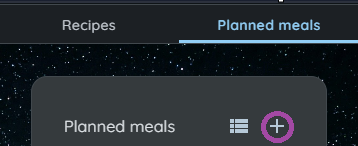
- Open Meals.
- Select Create plan.
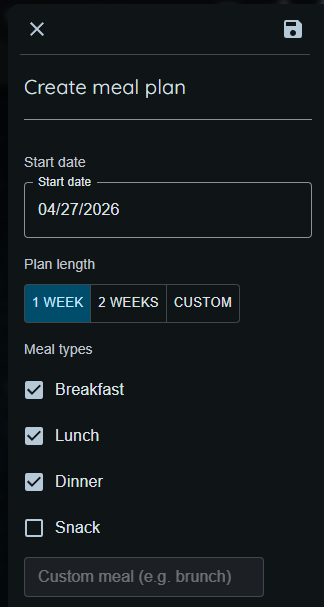
- Choose dates and meal types.
- Optionally share the plan with a group and select default diners.
- Select Save.
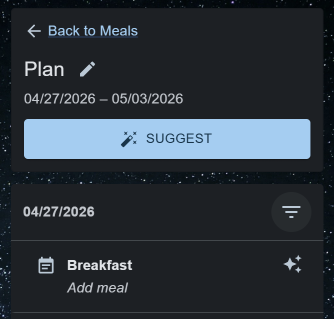
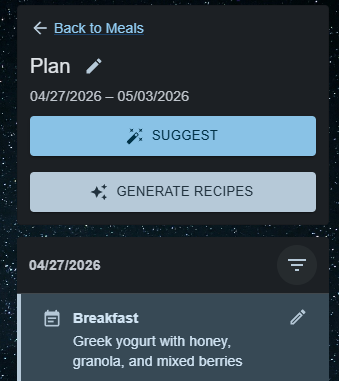
- Fill slots manually or use Suggest.
- After the meal plan is filled, you can automatically create new recipes for the meals.
Edit or delete a plan
From the plan view or plan list, you can:
- Edit plan details (name, dates, meal types).
- Delete the plan.
Deleting a plan removes all its meal slots.
Group meal planning
When using meal plans in a group:
- Members with permission can edit the plan.
- Default diners help prefill who meals are for.
If group options are missing:
- Check that meals are enabled for the group.
- Confirm your role in the group.
Troubleshooting
-
I can’t create a plan Check that you have access to Meals or the right group permissions.
-
I can’t edit a plan You may have read-only access if you are a member of a group.
-
AI suggestions fail Retry failed slots.