Events, tasks, and notes
Manage your calendar, appointments, tasks, and notes with the Busy Days events module. Notes, tasks, and events are clearly separated in the app’s home view.
Busy Days Chat
The Busy Days Chat assistant can answer questions about your schedule and help you update or cancel events that are stored in Busy Days. See Calendar.
Imported ICS events remain read-only; modify them in their source calendar.
Creating events
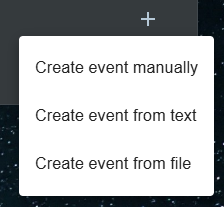
You can create events from the Home, Calendar, and Events views.
Through the Add button, you can choose whether you want to create the event yourself or have it created automatically from text or a file.
- With the Create event from text feature, you can copy event details from somewhere else (for example, from a message sent by school) or write the event in your own words: "Dentist next Wednesday at 2 pm".
- AI will automatically form the event and create it for you to review and confirm.
Supported file types:
- Text files: .txt
- Calendar files: .ics, .ical
- Email files: .eml, .msg
- Image files: .jpg, .png, .gif, .bmp, .webp
- PDF files: .pdf
File size limits:
- Text, calendar, image, and PDF files: up to 25 MB per file
- Email files (.eml, .msg): up to 25 MB per file
Fill in the event details:
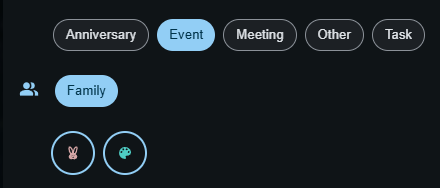
- Event type: Choose the appropriate type for the event.
- Event time: Give the event a start and end time, or mark it as an all‑day event if needed.
- Group: If you belong to a group that uses events, you can share the event with your group so that the group members can see the event details. Read more: Groups
- Recurrence: You can set the event to repeat regularly either at specific intervals or on specific weekdays.
- Reminder: New events have reminders selected by default. You can choose when you want to be reminded — when the event or task starts or when it ends. Remember to enable notifications in Settings!
Reminder defaults
When creating or editing an event or task, reminders are selected by default. You can choose when to be notified: at the start of the event or task, or when it ends. Change or remove the reminder in the event creation or edit screen. Remember to enable notifications in Settings so reminders are delivered.
Pinning events
Keep important events visible at the top of your list until they’re completed. Pin an event or task to make sure it stays at the top and doesn’t get lost in the list.
- Open the event or task
- Tap or click the pin icon to pin it
- Pinned items stay at the top until you mark them completed or unpin them
Tasks
Events can also be tasks that need to be completed.
- Create an event with the type Task
- When the task is done, mark it as Completed
- Tasks will disappear from view only after they have been marked as completed.
Notes
Notes let you capture information with or without dates. Use them for things that don’t fit a specific event or task: lists, ideas or shared information for your group.
- With a date: Add a note tied to a specific date so it appears on your calendar when relevant.
- Without a date: Create undated notes that stay in your list until you remove them.
- Share with your group: You can share notes with your group, just like events and tasks, so everyone can see them.