Busy Days – chat
Open Chat from the main menu to talk with the Busy Days assistant, Busy Bee.

When you start a new conversation or clear the history, you can select a topic with the shortcut buttons: Events, Support, Meals, or Chores
Use the microphone icon in the message field to dictate your message instead of typing:
- Tap the microphone icon and speak your message.

- While recording, a wavy red bar appears in the message field, indicating that recording is in progress.
- Tap the microphone icon again when you are done.
- Edit the text that appears in the message field before sending, if needed.
Events (calendar and tasks)
Busy Bee helps keep your Busy Days calendar and tasks up to date. In chat, you can:
- Create new events and tasks.
- View your schedule (for example, “What’s on tomorrow?” or “Show this week’s tasks”).
- Update or cancel entries: Busy Bee identifies the right item and proposes a change.
- Add event details from files: Upload a supported file and let Busy Bee prepare the event details for review.
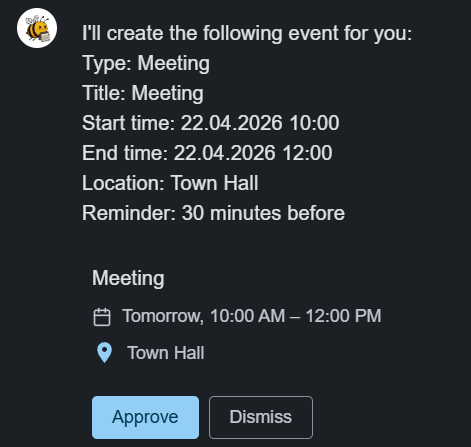
The proposal appears as a review card. You can approve or reject the change with chat buttons. Events are saved to your calendar only after you confirm them.
Supported file types:
- Text files:
.txt - Calendar files:
.ics,.ical - Email files:
.eml,.msg - Image files:
.jpg,.png,.gif,.bmp,.webp - PDF files:
.pdf
Files can be up to 25 MB per file.
Note: ICS feeds imported from external calendars are read-only. Always edit or cancel these events in the original source calendar. Standalone
.icsfiles are handled normally; see Calendar and Events.
Reply language: Busy Bee follows the Content language set in the app settings.
Support
The Support button starts a chat focused on support. Busy Bee looks for answers primarily in the app’s help articles, and you can send messages freely in the message field (written or dictated). If you do not find an answer to your issue, you can choose Contact support and fill out the support form:
- Add your email: The address support can use to reply if needed.
- Attach previous conversation to the support message: When this option is on, the chat conversation with the assistant is attached to the support request so the support team sees the context. Turn it off if you do not want to attach the conversation.
- Do not contact me by email: Select this if you do not want email follow-up about this issue.
- Describe your issue...: Write or dictate your support message in the message field and send.
Meals
Busy Bee helps you plan Busy Days meals to fit everyday life. In chat, you can:
-
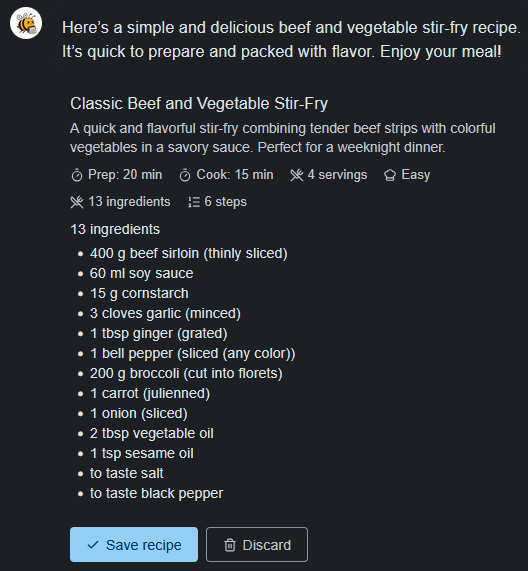
Create a new recipe: Describe the recipe you want to Busy Bee. You can save the finished draft to your collection. The app takes your meal settings (for example, diets and allergens) into account in suggestions.
-
Plan a meal: Choose meal type, timing, and selection method (saved recipes, generate a new one, or “surprise me”). You can use the suggestion or ask for another option.
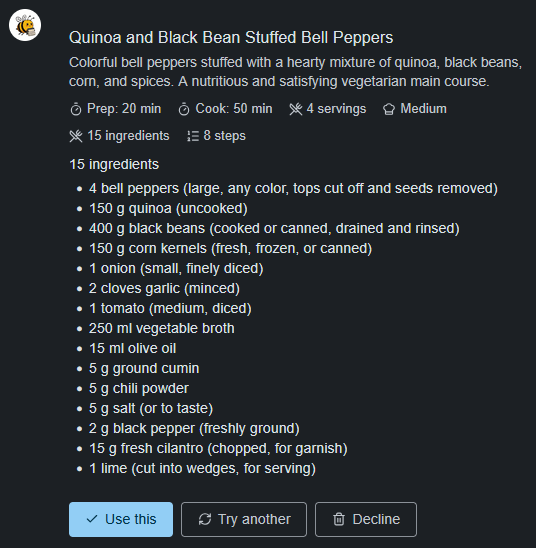
When you save a recipe or pick a suggestion, you can use the Create grocery list button to turn ingredients into a shopping list task.
Note: For planning across several days, we recommend using the app’s main Meal planning section.
Chores
Busy Bee guides you through creating and scheduling Busy Days chores step by step. In chat, you can:
- Choose either a personal chore or a shared group chore.
- Use a ready-made category (for example, a room) or create a new one by naming it yourself.
- Ask AI for suggestions (“Suggest chores”) based on the category and your history, or define the chore name manually with I'll type the name myself.
- Set recurrence, meaning how often the chore should be done.
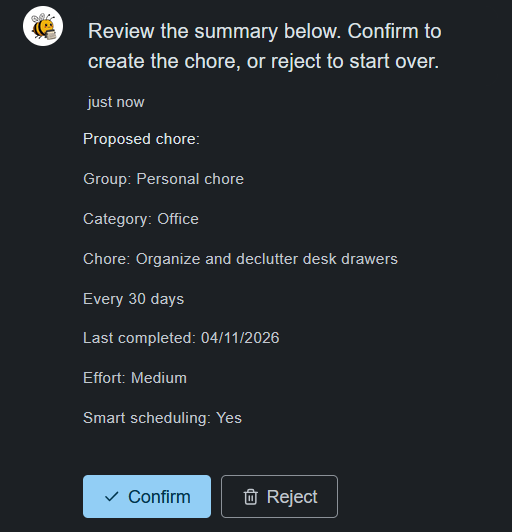
- Provide the previous completion date, so Busy Days can suggest the next time with smart scheduling.
- Choose effort (small, medium, or large).
- Limit assignees for group chores. If you do not name anyone, the chore is visible to all group members.
Save the chore by selecting Confirm, or cancel the draft by selecting Reject. For more information, see Chores.
Tips
- Be specific: Use exact dates and times so Busy Bee finds the right calendar entries.
- Check the cards: Read the review card carefully before approving to make sure the details are correct.
- Use Back: In most guided steps, use Back to return to the previous choice.