Events and tasks
Manage your calendar, appointments, and tasks with the Busy Days events module.
Creating events
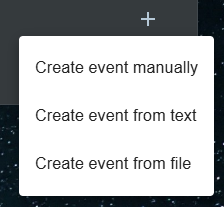
You can create events from the Home, Calendar, and Events views.
Through the Add button, you can choose whether you want to create the event yourself or have it created automatically from text or a file.
- With the Create event from text feature, you can copy event details from somewhere else (for example, from a message sent by school) or write the event in your own words: "Dentist next Wednesday at 2 pm".
- AI will automatically form the event and create it for you to review and confirm.
Supported file types:
- Text files: .txt
- Calendar files: .ics, .ical
- Email files: .eml, .msg
- Image files: .jpg, .png, .gif, .bmp, .webp
File size limits:
- Text, calendar, and image files: up to 25 MB per file
- Email files (.eml, .msg): up to 25 MB per file
Fill in the event details:
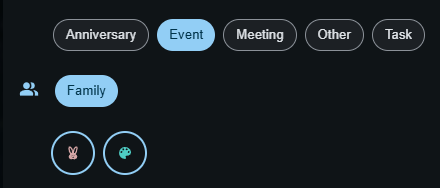
- Event type: Choose the appropriate type for the event.
- Event time: Give the event a start and end time, or mark it as an all‑day event if needed.
- Group: If you belong to a group that uses events, you can share the event with your group so that the group members can see the event details. Read more: Groups
- Recurrence: You can set the event to repeat regularly either at specific intervals or on specific weekdays.
- Reminder: Set a reminder for the event if you like. Remember to enable notifications in Settings!
Tasks
Events can also be tasks that need to be completed.
- Create an event with the type Task
- When the task is done, mark it as Completed
- Tasks will disappear from view only after they have been marked as completed.