Household Chores
The Chores module helps you easily keep track of your daily household tasks and lets Busy Days schedule them for you automatically.
Creating Chores
Create a New Chore
You can add new chores from the Home, Calendar, or Chores views by clicking the + button.
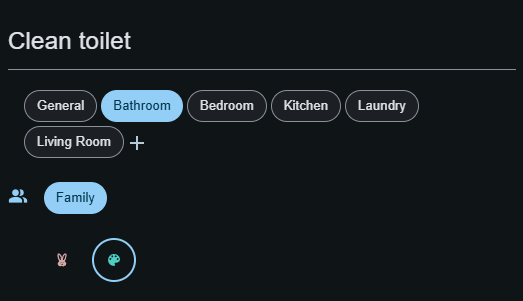
- Category: You can create new categories (e.g., for different rooms) using the + button.
- Group: If you belong to a group that uses shared chores, you can share the chore with your group. See more details under Groups
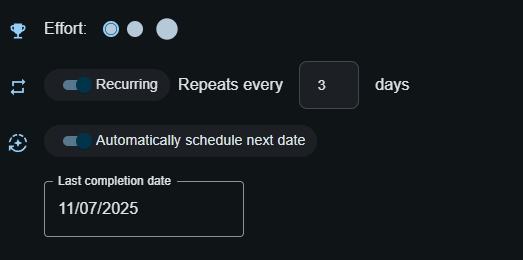
- Effort Points: How much work the chore requires.
- Recurring: Select this if the chore repeats regularly.
Use the Guided Chore Creation Tool

- To start the Guided Chore Setup, go to the Chores page and click the Guided Setup button.
- Choose the room you want to set up from the grid of available rooms. You can set up rooms in any order and come back later for more.
- For the selected room, review the suggested chores, and adjust their names, effort level, frequency, and assignees as needed.
- You can also add your own custom chores or leave out chores you don’t need.
- When you are happy with the setup for that room, save it to apply the changes.
- Repeat the process for additional rooms if you like, or move to the completion step when you are done.
- Finish the wizard to return to the main Chores view, where your new categories and chores will now be available.
💡 Tip: You can duplicate rooms by editing the room name when selecting new chores (e.g. "Anna's bedroom" and "John's bedroom").
💡 Tip: If you want to share chores with a group (e.g. your family), make sure to create the group before adding chores. This way, you can easily assign chores to your group.
Category management
Categories help you organize chores (for example Kitchen, Bathroom, Kids’ room) and make it easier to filter your chore list by category.
Create a new category
You can create a category in two ways:
- While creating/editing a chore: Click the + next to the Category field, enter a category name, and save.
- From the Chores view: Open Chores and click the ⚙️ icon in the top bar (Manage categories). Click the + in the dialog header, enter the Category name, and click Create.
Rename a category
- Open Chores → Manage categories (⚙️ icon).
- Click the pencil icon (Edit) next to the category.
- Change the name and click Save.
❗Note: Category names must be unique. If a category with the same name already exists, the app will notify you.
Delete a category
- Open Chores → Manage categories (⚙️ icon).
- Click the trash icon (Delete) next to the category.
If the category contains chores, you will have two options:
- Delete all chores: deletes the category and all chores inside it.
- Move chores to another category: moves the chores to a category you select, then deletes the category.
💡 Tip: If you don’t see the “Move chores to another category” option, first create another category to move the chores into.
Automatic chore assignment in a group
When you share a chore with a group, Busy Days can automatically assign the chore to group members. This makes it easy to see who is responsible for the next time the chore is due.
After you select a Group for a chore, you can choose specific Assignees from the group members. If the chore is meant for everyone, you can leave Assignees empty. Busy Days will then assign the next scheduled instance to one of the selected assignees (or to any group member if no assignees are set).
❗Note: All chores shared with the group are visible to all group members, and you can also complete a chore that is assigned to someone else. Automatic assignment is intended to distribute chores fairly within the group — not to restrict what group members can do.
How do I enable automatic assignment?
- Create or edit a chore.
- Select a Group for the chore.
- Choose Assignees:
- If you select one or more assignees, automatic assignment will choose among those people.
- If you don’t select any assignees, the chore can be assigned to any group member.
- (Optional) Assign the chore to one of the assignees:
- You can assign the next due instance to a specific person, or let the app schedule and assign chores automatically.
When is a chore assigned automatically?
Busy Days updates assignments when chores are rescheduled (for example using the “Schedule all chores” action or during automatic rescheduling).
- The previous assignment is cleared and a new assignee is selected for the next scheduled instance.
- If you edit a chore and remove someone from Assignees, the app will automatically clear the Assigned field if it was assigned to that person.
How does Busy Days choose who gets assigned?
Automatic assignment aims to be fair and considers each member’s workload:
- Effort points: the higher the effort, the more it contributes to a person’s daily load.
- Point goals: assignment takes into account each member’s own point goal for that day.
- Balanced distribution: if the chore fits multiple members’ goals, the app tries to distribute chores evenly across the group.
Effort Points
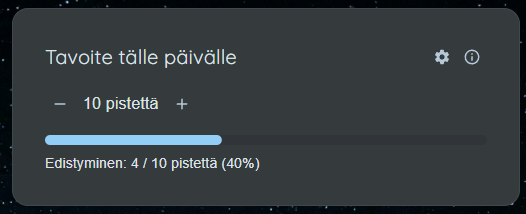
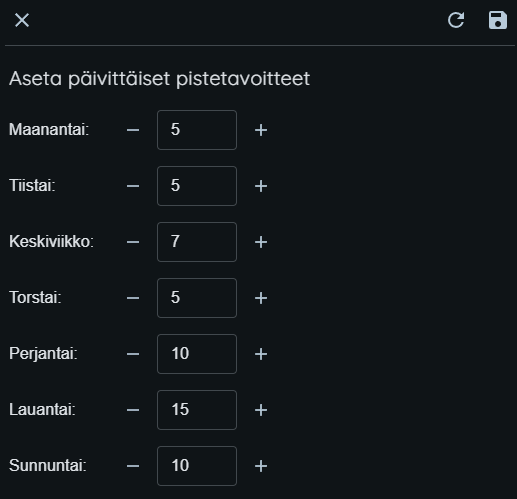
You can set daily point goals from the settings icon (⚙️) in the Chores view. If you wish, you can adjust today’s goal using the – and + buttons.
Estimate the difficulty level of each chore:
- ⭐ 1 point: Quick and easy
- ⭐⭐⭐ 3 points: Moderate effort
- ⭐⭐⭐⭐⭐ 5 points: Major project
Using effort points, Busy Days can automatically schedule chores based on your daily goals.
💡 Tip for groups: When you use automatic assignment for group chores, each member’s own point goal affects who the chore is most likely to be assigned to.
Recurring Chores
For recurring chores, you can choose between automatic scheduling or setting a fixed recurrence interval.
Next Due Date
Busy Days automatically calculates when each chore should be done next.
- Automatic Scheduling: The app learns your habits and considers your daily goals when planning chores.
- Manual Scheduling: The chore repeats at the interval you specify.
Chore Rescheduling
Chores are rescheduled based on the day start time you’ve selected in your settings. If any chores were left incomplete from the previous day or completed ahead of schedule, this will be taken into account when adjusting the schedule.
Completing Chores
When you mark a chore as completed, its effort points are added to your daily total. You can also mark upcoming chores as completed through the Chores view — their completion will be recorded for the current day.
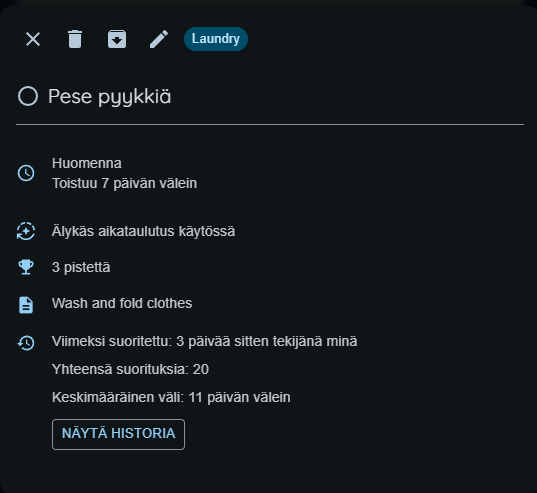
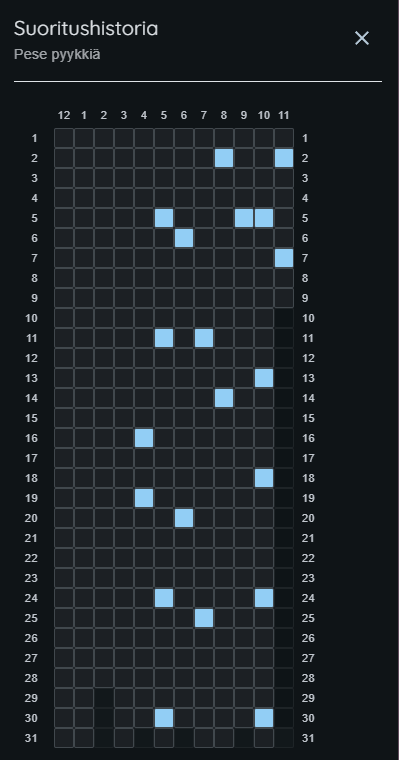
You can open a chore’s details to view its settings and average completion interval. Under the Show History button, you can view the completion history and edit past entries by clicking on the calendar.