Calendar
Busy Days’ calendar view brings your events and tasks together. You can also import other calendars into Busy Days or subscribe to the Busy Days calendar in another calendar app to keep all your events easily in one view.
Calendar sync (ICS)
Busy Days supports calendar integrations in ICS/iCal format.
- Import into Busy Days (ICS feed): You can see events from an external calendar in Busy Days in read-only mode, and they will update automatically.
- Export from Busy Days (ICS feed / subscription link): You can subscribe to your Busy Days calendar in e.g. Google Calendar, Apple Calendar, or Outlook.
❗Note: An ICS subscription is essentially one-way. You can only make changes to events in the source system. In other words, if the events were imported into Busy Days from another system, edit the events in the source system. Likewise, if you exported Busy Days events to another calendar, make changes to the events in Busy Days.
Import an external calendar into Busy Days (ICS feed)
When you add an ICS feed to Busy Days, the app fetches the feed in the background and updates events automatically.
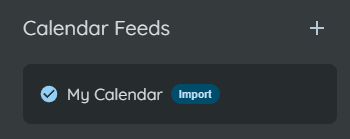
- Open Settings in Busy Days
- Find the section that manages Calendar feeds
- Add the new feed’s URL (iCal/ICS link)
- Save
After this:
- The external calendar’s events will appear in Busy Days as read-only events.
- The feed updates automatically in the background (typically about once an hour).
- You can add multiple different ICS feeds.
Export the Busy Days calendar to another app (ICS subscription)
You can create your own calendar feed in Busy Days and subscribe to it in another calendar app.
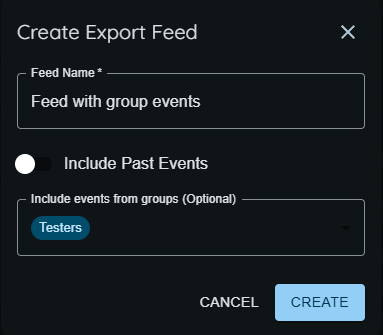
- Open Settings in Busy Days
- Find Calendar Feeds
- Create a new feed (if needed, you can limit which events are included in the feed)
- You can include either only upcoming events or also past events.
- You can include events from the groups you choose. Your personal events are automatically included in the feed.
- Copy the feed’s ICS URL
❗Security: If the feed URL contains an identifier/token, treat it like a password. Anyone who has the link can view the feed contents in their calendar app.
Note: The feed is updated automatically on the Busy Days side when your events change, but your calendar app may refresh the feed on its own schedule.
Add the Busy Days feed to Google Calendar
- Open Google Calendar (web browser)
- Select Other calendars → Add → From URL
- Paste the Busy Days ICS URL
- Save
Add the Busy Days feed to Apple Calendar (iPhone/iPad/Mac)
- In the Calendar app, choose Subscribe to Calendar / New Calendar Subscription
- Paste the Busy Days ICS URL
- Save (and choose a refresh interval if the app offers it)
Add the Busy Days feed to Outlook
- In Outlook, choose Add calendar
- Select Subscribe from web / From URL
- Paste the Busy Days ICS URL
- Save